Every few years a new WiFi standard arrives and the router aisle resets. WiFi 7 is the current one, and the pitch is familiar: more streams, wider channels, lower latency. What the pitch leaves out is that your internet connection still arrives through a satellite link that tops out well below what WiFi 6 already handles.
So the honest answer to whether it is worth it depends entirely on what is slow in your house. If the bottleneck is the link to the sky, a new router changes nothing. If the bottleneck is the last ten feet between the router and a laptop in the back bedroom, WiFi 7 can be a real improvement, and in a way you will notice without running a single speed test.
We have swapped enough routers on Starlink installs to have a feel for where the money lands. Here is the version of the argument we give people standing in their hallway, holding a phone, asking why the bedroom is bad.
What WiFi 7 can and cannot fix
WiFi 7 adds a wider channel in the 6 GHz band, more spatial streams, and a feature that lets a device talk on two bands at once. In a house with a lot of devices and a lot of walls, that translates into steadier throughput and less time waiting behind someone else’s stream. It is genuinely better, not marketing.
What it cannot do is create bandwidth that the dish is not delivering. If your Starlink connection is giving you 90 Mbps down on a good evening, no router on earth will turn that into 300. Anyone who buys a WiFi 7 box expecting faster downloads is going to be disappointed, and the return shipping label is their own fault for not reading the spec sheet closely enough.
Where the upgrade earns its keep is congestion. A household with two TVs streaming, three phones, a game console, and a video call running at once will feel the difference, because the bottleneck in that moment is the air between devices and the router, not the satellite. That is the case worth spending on.
The 2.5G question
Most WiFi 7 routers ship with a 2.5 Gbps WAN port, and on a Starlink connection that port is idle most of the time. The dish does not deliver 2.5 gigabit, and it will not for a while. So why care? Because the port also matters on the LAN side, where a wired desktop, a NAS, or a mesh node can move data between each other far faster than the satellite link ever allows.
If you have nothing wired, skip it. If you have a workshop machine pulling files off a drive in the house, the 2.5G path is the difference between a file copy that takes a minute and one that takes fifteen, and it has nothing to do with Starlink at all.
The trap is buying a 2.5G router and then connecting it with an old Cat5e patch cable from a drawer. The link will negotiate down to 1G and you will never know, because nothing in the interface tells you the cable is the reason. Match the cable to the port or the port is decoration.
Bypass mode is the part that matters
Starlink’s own router can be put into bypass mode, which turns off its WiFi and hands the public address to whatever you plug into the Ethernet adapter. That single setting is what makes a third-party router worth owning, because it removes the double NAT that breaks port forwarding, some VPNs, and a surprising number of smart home devices.
Not every router handles bypass gracefully. Some expect a DHCP lease that renews normally and get confused by the dish’s behavior on a bad weather day. Before you commit, search for the model plus “Starlink bypass” and read what people actually reported rather than what the box claims. A router that needs a reboot every time the link drops is worse than the stock one.
Also plan for the adapter. The standard dish needs an Ethernet adapter to get a wired handoff at all, and the Mini needs a different one. Budget for it in the same purchase, because discovering you are one $30 part short after the router arrives is a special kind of irritation.
| Product | Best For | Key Features | Price |
|---|---|---|---|
 |
WiFi 7 Router |
|
Check Price on Amazon |
 |
2.5G Managed Switch |
|
Check Price on Amazon |
 |
Cat6A Patch Cables |
|
Check Price on Amazon |
 |
WiFi 7 Mesh Node |
|
Check Price on Amazon |
 |
USB-C 2.5G Adapter |
|
Check Price on Amazon |
1. WiFi 7 Router
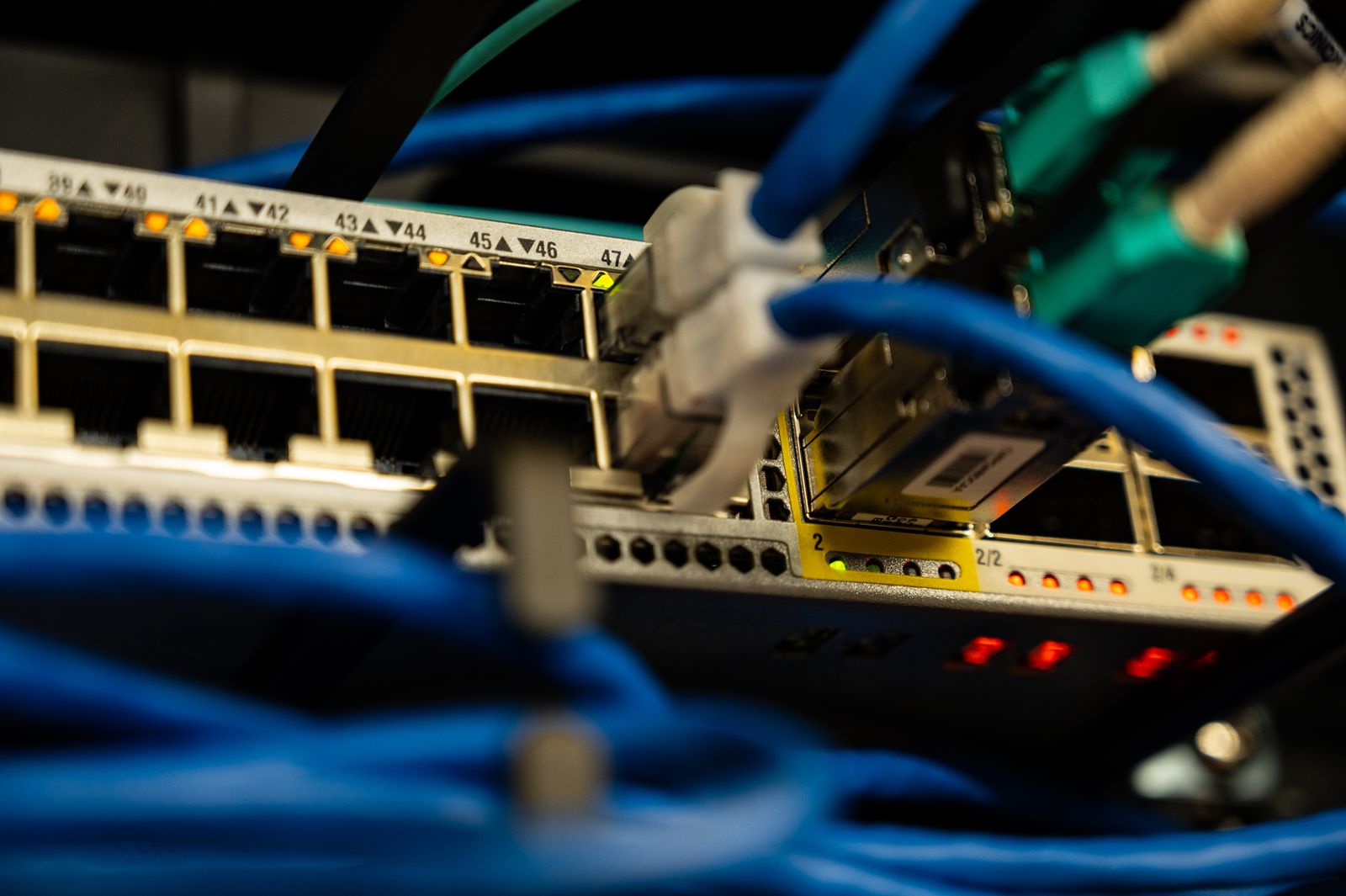
The main unit should be chosen for its wired side as much as its radios. A 2.5G WAN port, at least one 2.5G LAN port, and a bypass mode that behaves are the three things that decide whether this box makes your network better or just newer.
Look at the antenna arrangement too. A router with four external antennas is not automatically better than one with internal antennas, but it is easier to place, because you can angle the pattern toward the rooms that need it instead of broadcasting a donut into the ceiling.
Firmware support is the quiet factor. Brands that push security updates for five years are worth a premium over brands that abandon a model in eighteen months, and there is no spec sheet line for that. Check the last firmware date on the support page before you buy.
See WiFi 7 routers on Amazon →
2. 2.5G Managed Switch
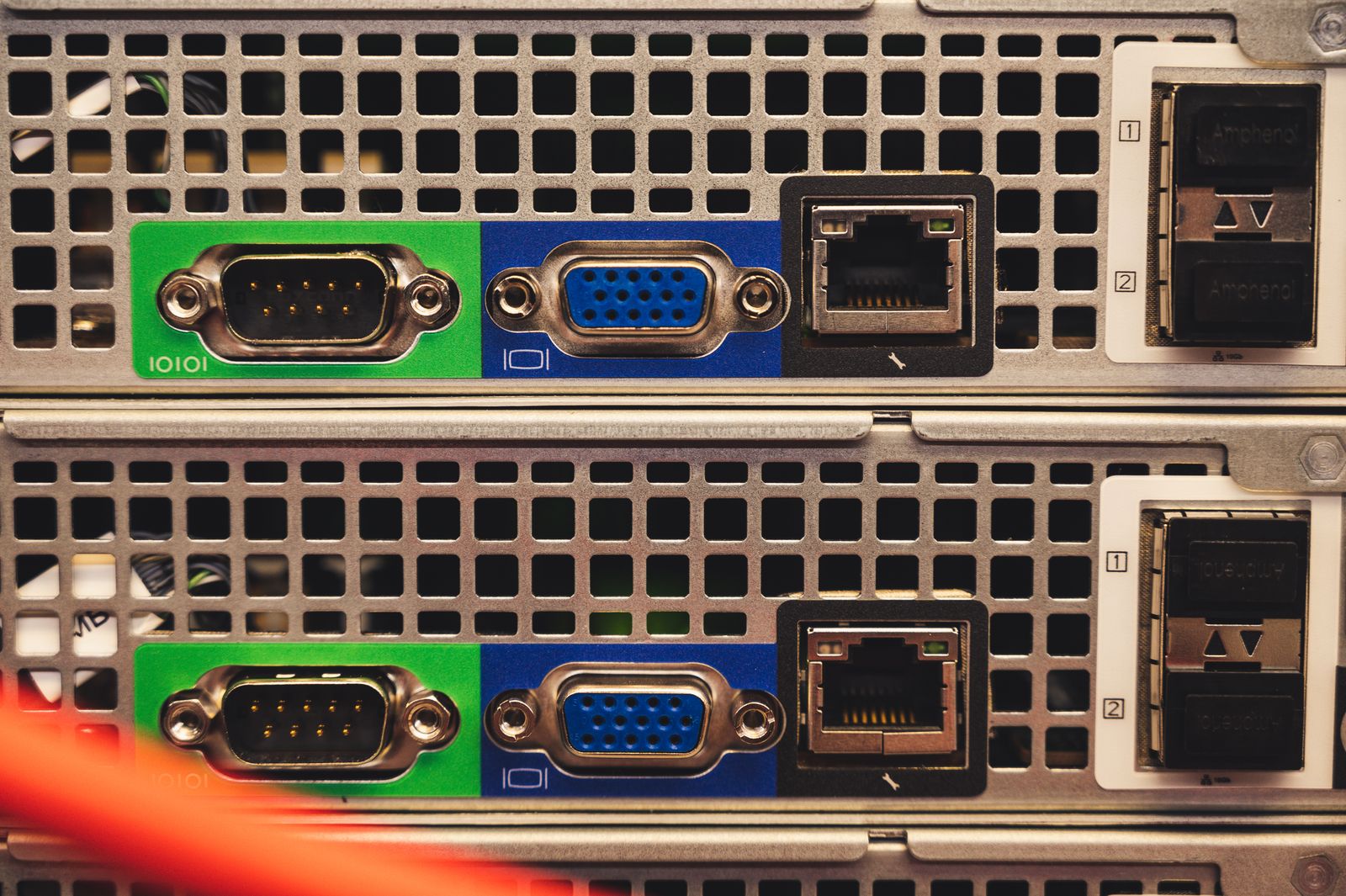
Once the router has a fast port, the switch behind it decides whether that speed reaches the rest of the house. An unmanaged gigabit switch from a decade ago will quietly cap every wired device at 1G, and nobody will notice until they try to move a large file between two machines.
Managed matters here for one practical reason: VLANs. Even if you do not care about network segmentation today, the switch is the part you would have to replace to add it later. Buying managed once costs a little more and saves a swap.
Fanless and metal is the combination to look for. A switch with a small whining fan will live in a closet or a media cabinet where you hear it every night, and a plastic case that flexes when you push a cable in will eventually crack around the port.
See 2.5G managed switches on Amazon →
3. Cat6A Patch Cables
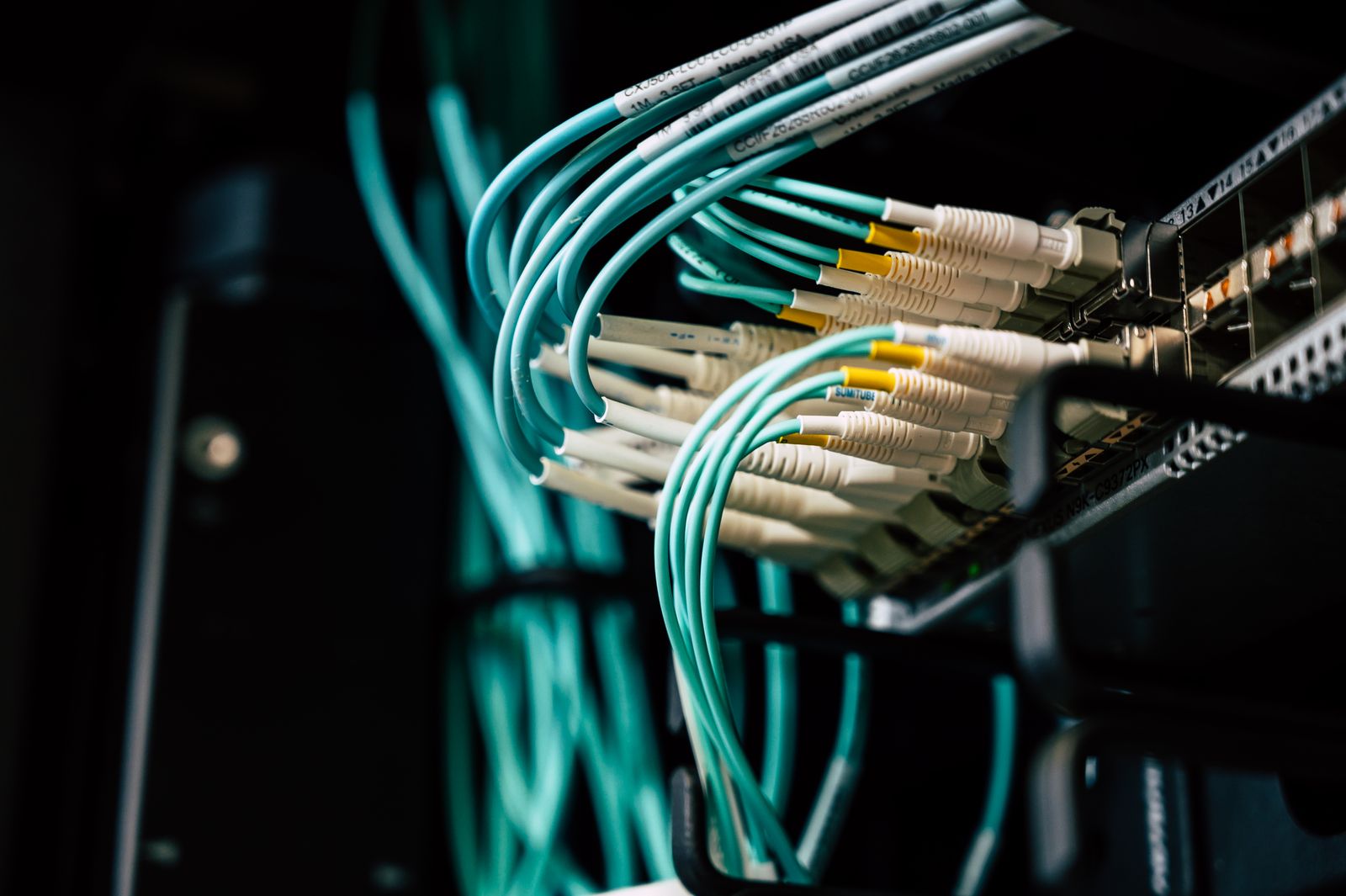
Patch cables are the cheapest part of the upgrade and the most common reason it underperforms. Cat6A is rated for the distances and speeds involved here, and shielded pairs keep interference out when a run passes close to a power strip or a wall wart.
Buy short. The cabinet run from router to switch should be one foot, not six, because a coil of spare cable behind a shelf is an antenna and a dust trap. Order a few lengths and use the shortest one that reaches without strain on the port.
Snagless boots are worth the extra dollar. The tab on a cheap patch cable breaks off after a few insertions, and then the cable either will not stay seated or will not come out without a fight. On equipment you intend to leave alone for years, that small detail is the difference between a tidy install and a mess.
See shielded Cat6A cables on Amazon →
4. WiFi 7 Mesh Node
A second node is how you cover the far end of a long house without turning the main router into a beacon that blasts through two walls and arrives tired. The trick is to place the node where the signal is still good, not where the signal is bad, because a node repeating a weak signal repeats a weak signal.
Wired backhaul changes the character of the whole system. If there is any way to get an Ethernet run to the node, do it; the node then behaves like a second access point rather than a relay, and the throughput at the far end stays close to what the main unit delivers.
Keep the same SSID and let devices roam, but resist the urge to run three nodes in a small house. Too many radios in too little space is its own problem, with devices clinging to a distant node instead of switching to the near one. Two well-placed units beat four crowded ones.
5. USB-C 2.5G Adapter
A small adapter solves a specific annoyance: the laptop that has no Ethernet port but needs a stable wired link for a call or a large upload. Plug it into the USB-C port, and the machine gets a real network interface instead of fighting with WiFi.
Buy one with a metal body and a short captive cable. The plastic ones run warm and the attached pigtail is the first thing to fail, usually at the strain relief where it exits the shell. Aluminum dissipates heat and survives being tossed in a bag.
Driver fuss is the thing to check in reviews. Most modern units work on plug-in with no installation, but a few need a vendor driver on older systems, and that is a bad surprise on a machine you cannot easily reboot. If the listing mentions a specific chipset, search that chipset plus your operating system before ordering.
See USB-C 2.5G adapters on Amazon →
Mistakes that waste the upgrade
Putting the new router exactly where the old one sat is the most common. If the old box was in a media cabinet behind a metal door, the new one will be just as blind, only faster at being blind. Move it into the open before you judge it.
Leaving the old network name in place is the second. Devices that connected to the previous router will hold onto the old SSID entry and behave oddly for days. Set a fresh name, or at least forget the old network on the devices that matter, and the transition gets much quieter.
The third is buying the router before checking the adapter situation. People order the flagship unit, wait a week, then discover the dish needs an Ethernet adapter that is out of stock. Order the small parts first and the big box last.
FAQ
Will WiFi 7 make my Starlink faster? No. It can make the connection between your devices and the router faster and more consistent, which often feels like speed, but the satellite link itself is unchanged.
Do I need a WiFi 7 router if I live in a small apartment? Probably not. A single good WiFi 6 unit covers most apartments, and the money is better spent on a better mounting position or a wired run to the desk.
Can I keep using the Starlink router with a new one? Only if you accept double NAT, which breaks some services. Bypass mode plus one router is the cleaner arrangement and takes about two minutes to set up.
Bottom line
WiFi 7 is worth it when your house is crowded and your devices are new, and it is a waste when the only slow thing is the satellite link. Buy it for the LAN side, for the wired ports, and for the headroom, not for download speed you will never see.
If you are unsure, move the existing router first and run a wired cable to the worst room. That costs almost nothing and answers the question better than any spec sheet comparison.