Bypass mode is the move that turns a Starlink kit from an appliance into a real network. Instead of letting the stock router handle everything, you tell it to get out of the way and let your own router do the work — your firewall rules, your QoS, your WiFi, your guest network. We’ve run bypass on both Gen 2 and Gen 3 kits, and once it’s set up you forget the stock router ever mattered. The upside is control and stability; the catch is that you need the right hardware and you have to do the steps in order.
The reason people attempt this is usually a specific complaint: WiFi doesn’t reach, latency spikes when someone downloads, the firewall won’t do what they need, or a mesh system won’t play nicely behind the stock box. Bypass fixes all of those, because it removes the middle man. This guide walks through the parts you need, the order to do things, and the mistakes that send people back to square one.
What you need before you start
Two things, minimum: a wired path out of the Starlink kit, and a router to hand the job to. On a Gen 2 kit the wired path comes from the Gen 2 Ethernet adapter, which is the only way to get a physical port out of that hardware. On a Gen 3 kit it’s the Gen 3 Ethernet adapter. Don’t start without the right one for your generation — bypass needs the wire, and there’s no way around that.
Then your router needs to be able to act as the main gateway on a DHCP WAN, which virtually all modern routers can do. If you plan to extend coverage, a mesh node and a small switch come next, and a couple of short patch cables tie it together. Get the parts in hand first, because a half-installed bypass with no way back is how people end up locked out of their own network at midnight.
| Product | Best For | Key Features | Price |
|---|---|---|---|
 |
Ethernet Adapter (Gen 2) |
|
Check Price on Amazon |
 |
WiFi 6 Router |
|
Check Price on Amazon |
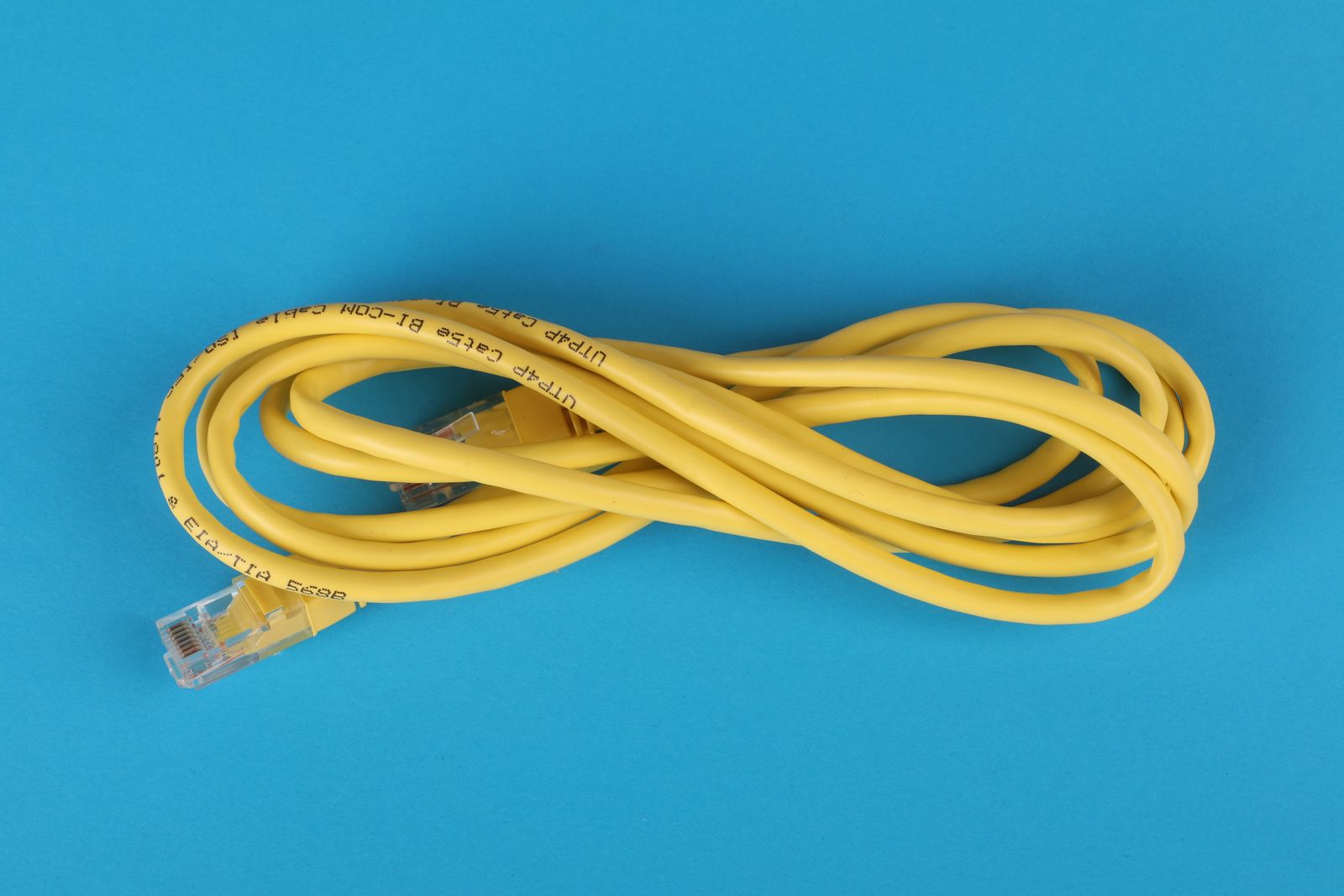 |
Mesh Node |
|
Check Price on Amazon |
 |
Gigabit Network Switch |
|
Check Price on Amazon |
 |
Cat6 Patch Cable |
|
Check Price on Amazon |
1. Ethernet Adapter (Gen 2)
If you’re on the actuated Gen 2 kit, this adapter is non-negotiable — it’s the hardware that makes bypass possible at all. It taps the feed and adds a physical WAN port, which is the thing the stock Gen 2 router otherwise refuses to give you. We’ve installed these specifically to enable bypass, and without it there’s simply no wire to hand your router, so the whole project stalls.
It adds one port, not a switch, so plan on your router taking that single WAN connection and everything else hanging off the router or a switch behind it. Buy the genuine gen part; a mismatch between adapter and hardware is the most common reason a bypass attempt fails at the first step. Check your router’s generation before ordering and you’ll avoid the return trip.
Liked: the only route to bypass on Gen 2, adds a real WAN port, cheap. Catch: single port, gen-specific, useless if you have the wrong hardware. Confirm before you buy.
See Gen 2 Ethernet adapters on Amazon →
2. WiFi 6 Router
This is your new gateway — the device that takes over once the stock router is out of the way. A decent WiFi 6 router gives you a proper firewall, real QoS so you can stop one download from wrecking everyone’s video call, and enough client capacity for a busy house. We run a WiFi 6 unit as the main router on most bypass setups because it’s the value sweet spot: strong radios, real features, and it doesn’t cost what the newest standard does.
For bypass, the key setting is the WAN side. You’ll set the router’s WAN to DHCP, because Starlink dishes hand out an address dynamically once the stock router is bypassed. Beyond that, everything is your choice — you can give it a static LAN range, set up guest WiFi, carve out VLANs if you’re the type, and write firewall rules that the stock router never supported. That control is the entire point of doing this.
Size it to your home, not your ego. A crowded house with thick walls will want a good WiFi 6 or 6E unit; a smaller space is fine with plain WiFi 6. The router defines what your network can do, so it’s the one place not to cut corners — but it’s also where “good enough” is genuinely good enough.
See WiFi 6 routers on Amazon →
3. Mesh Node
Once your own router is the brain of the network, a mesh node is how you extend coverage without going back to the stock box. A node adds a second access point that your main router manages, so devices roam cleanly between them and the whole house stays on one network name. We add a node when a far wing or an upper floor still has weak signal after the router is in place, and it’s a cleaner fix than any extender.
The reason to buy the same brand as your base router is simple: nodes only work as a mesh with a compatible base. Mismatched brands won’t form the clean handoff you’re paying for. And if you can run a cable to the node, do it — an Ethernet backhaul lets the node serve clients without spending its radios talking back to the router, which is the difference between good and great in a big house.
Plan roughly one node per floor for a large home, fewer if you can wire them. The node extends your router; it doesn’t replace it, so it only makes sense after bypass is working. Liked: fills dead zones, roaming works, wired backhaul option. Catch: must match the base brand, and placement still decides how well it works.
4. Gigabit Network Switch
Your router probably has a handful of LAN ports, and that’s often not enough once you go wired. An unmanaged gigabit switch turns one port into many, instantly, with no configuration — plug it in and it works. We keep a small metal-case switch in most setups because wired devices that don’t share WiFi airtime are wired devices that never stutter, and a switch is the cheapest way to get more of them online.
The placement rule is fixed: the switch goes after your router, never in front of it. The router has to be the thing that handles the WAN and the routing; the switch just fans out the LAN behind it. Put a switch in front of the router and nothing will route correctly. Behind the router and it’s invisible, reliable, and fast.
Unmanaged is plenty here, and a metal case runs cooler than plastic, which matters if it lives in a warm closet. The switch is the least glamorous box in the chain and the one you’ll forget is there — which is exactly what you want. Liked: instant ports, zero config, cheap. Catch: goes after the router only; unmanaged means no VLAN control, so buy managed if you need that.
See gigabit switches on Amazon →
5. Cat6 Patch Cable
The humble patch cable is where bypass setups live or die, and it’s the cheapest part in the whole chain. Short, solid-copper Cat6 cables tie the adapter to the router and the router to the switch, and snagless boots keep them from breaking when you move things. We’ve chased more “flaky network” gremlins to a bad or loose patch cable than to anything expensive — a swapped cable is the first thing we try.
Buy solid copper, not copper-clad aluminum. CCA cable looks the same on the shelf but it’s not the same on the wire, and it’s the usual culprit behind a link that negotiates down or drops under load. Keep the runs short and tidy between your boxes; patch cables are for the final connections, not for long structural runs, and a tidy bundle is one you can actually troubleshoot.
Keep a spare or two in the drawer. When a cable does fail — and one eventually will — having a known-good replacement turns a frustrating evening into a two-minute swap. It’s the most boring purchase on this page and the one that saves you the most time.
Compare Cat6 patch cables on Amazon →
The bypass steps, in order
Do these in sequence and it goes smoothly. First, gather everything and confirm your generation matches the adapter. Second, set up your own router on a bench — before it’s part of the network — so you can log into it, set its WAN to DHCP, set its LAN range, and set your WiFi name and password. Doing this first means you’re not guessing once the network is live and you’re locked out.
Third, connect the Ethernet adapter to the Starlink kit and run a cable from the adapter to your router’s WAN port. Fourth, in the Starlink app, put the kit into bypass mode. Fifth, power everything down, then up in order: Starlink, then your router, then the switch and nodes. Sixth, test. Give it a minute to hand out addresses, then check that the internet works and that the Starlink app shows the dish online but the stock WiFi off.
That order matters. Setting up the router before bypass means you’re never locked out. Bypassing before you have a working replacement means the whole house goes dark with no way back except a reset, which is the mistake we see most often and the easiest one to avoid.
What changes after bypass
Once bypass is on, the stock router stops being your gateway — its WiFi goes off and your router takes the WAN. Practically, that means your firewall, QoS, port forwarding, guest network, and DHCP all come from the hardware you chose, which is the point. It also means the Starlink app keeps managing the dish itself, while your router manages the network, so the two jobs are cleanly split.
The things you gain are control and consistency: no more fighting the stock router’s minimal settings, and a network whose behavior you can actually tune. The things that change are that you now own the configuration — if your router’s WiFi is weak, that’s yours to fix, and if a rule is wrong, that’s yours to change. Most people find that trade worth it within a week.
Common mistakes to avoid
The big one is bypassing before your router is ready. Set up the router first, always. The second is buying the wrong-generation adapter — check your hardware before ordering. The third is putting a switch in front of the router, which breaks routing. The fourth is expecting bypass to fix slow Starlink service; it won’t. Bypass adds control and removes the stock router’s limits, but it can’t raise the speed the dish delivers.
Also, don’t skip labeling. Once you have an adapter, a router, a switch, and nodes all cabled together, unlabeled runs become a puzzle. A strip of tape with a couple of words saves you a half hour the next time something changes. And keep the notes for your router’s LAN range and login somewhere you’ll find them — you’ll need them.
How to test it worked
After the reboot, confirm three things: the internet works from a wired device, your WiFi network name is the one you set on your own router, and the Starlink app shows the dish online with the stock WiFi disabled. If the wired device works but WiFi doesn’t, check your router’s WiFi settings. If nothing works, your adapter or generation match is the first suspect, then the patch cable.
Then run a wired speed test and compare it to a WiFi test in a far room. If wired is solid and WiFi is weak far away, you’ve got the classic coverage problem and a mesh node is the fix. If both are solid, you’re done — and you’ll notice the difference most when several people are online at once.
Comparison
| Part | Role in bypass | Required? | Notes |
|---|---|---|---|
| Ethernet Adapter (Gen 2) | Adds the WAN port | Yes (Gen 2) | No switch inside; gen-specific |
| WiFi 6 Router | New gateway and WiFi | Yes | Set WAN to DHCP |
| Mesh Node | Extends coverage | Optional | Same brand as base; wire if you can |
| Gigabit Network Switch | More wired ports | Optional | Goes after the router |
| Cat6 Patch Cable | Ties the parts together | Yes | Solid copper, not CCA |
FAQ
Can I bypass without an Ethernet adapter? No. Bypass needs a physical wired path, and on the stock kits that path comes from the generation-specific adapter. Without it there’s no wire to hand your router.
Do I lose Starlink app control after bypass? No. The app still manages the dish and the service. Bypass only turns off the stock router’s WiFi and routing, so network control moves to your router while the dish stays under Starlink’s app.
What router settings do I change? Set the WAN to DHCP so it gets an address from the dish, then set your LAN range and WiFi name and password. Do all of that before bypassing so you’re not locked out afterward.
Will bypass make Starlink faster? Not by itself. It removes the stock router’s limits and can improve real-world performance in a busy home by giving you QoS and better scheduling, but your service speed is still the ceiling.
Our pick
For a Gen 2 kit, start with the Gen 2 Ethernet adapter to get the WAN port, and pair it with a WiFi 6 router as your new gateway. Those two parts get you the whole benefit of bypass; everything else is refinement.
Set up the router first, bypass second, and keep the order straight. Do that and bypass mode is a calm ten-minute job with a network you fully control at the end of it.