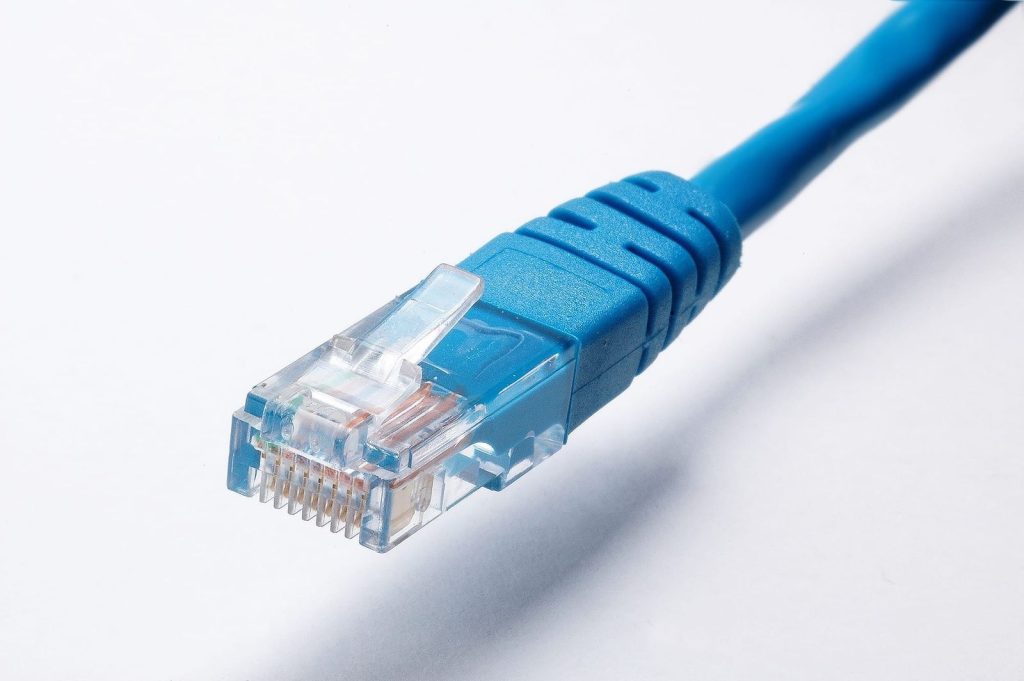
The Ethernet adapter is the least exciting Starlink accessory and probably the most useful one. It gives your dish a wired path — either to a single device or to your own router — and it’s the prerequisite for the whole category of upgrades people actually care about: bypass mode, a real firewall, wired gaming, and a stable connection that doesn’t depend on WiFi. We’ve added adapters to Gen 2 and Gen 3 kits, and the first thing they usually fix is a mystery: “why do my speeds drop in the evening?” often comes back to WiFi being the bottleneck, not the dish.
The trick with adapters is buying the right one for your hardware. Gen 2 and Gen 3 Starlink kits use different connectors and different places to plug in, so the wrong adapter simply won’t fit. Get that right and the rest is simple. Get it wrong and you’ll be returning parts and waiting a week, which is exactly why we wrote this down.
What the Ethernet adapter actually gives you
Three things, really. First, a physical port where your Starlink feed turns into ordinary Ethernet — which lets you plug in a wired device, a switch, or your own router. Second, the doorway to bypass mode, where you turn off the stock router’s WiFi and run the entire network through gear you control. Third, a diagnostic baseline: a wired test tells you whether a slow connection is the WiFi or the service, which is the fastest way to stop guessing.
What it does not give you is more speed than the dish delivers, or a switch built in. Most adapters add one port, not several, so if you want multiple wired devices you follow it with a real switch. Think of the adapter as the socket that gets Starlink onto the wire; everything downstream is your choice.
| Product | Best For | Key Features | Price |
|---|---|---|---|
 |
Gen 2 Ethernet Adapter |
|
Check Price on Amazon |
 |
Gen 3 Ethernet Adapter |
|
Check Price on Amazon |
 |
2.5GbE USB Adapter |
|
Check Price on Amazon |
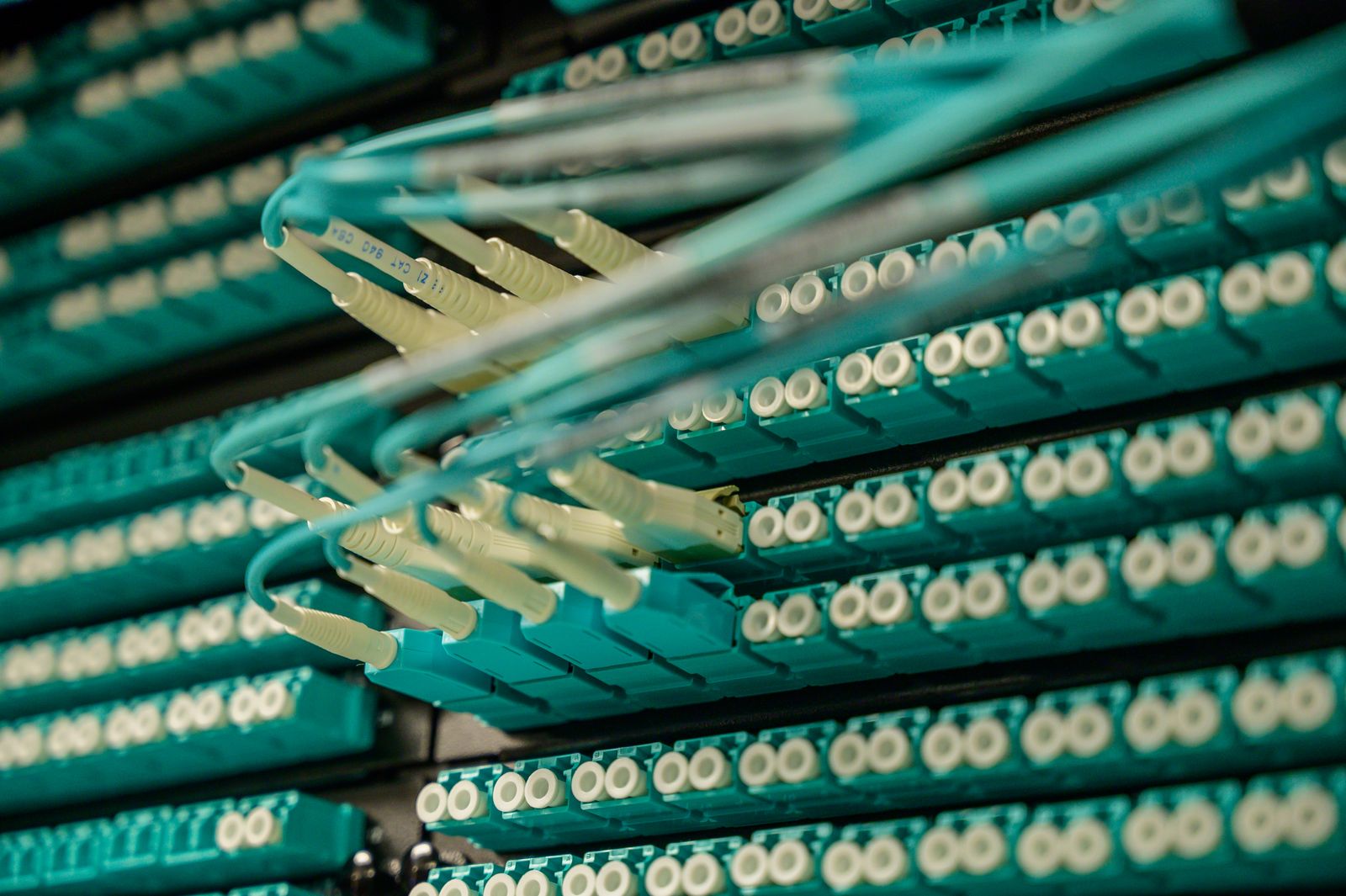 |
USB-C to Ethernet Adapter |
|
Check Price on Amazon |
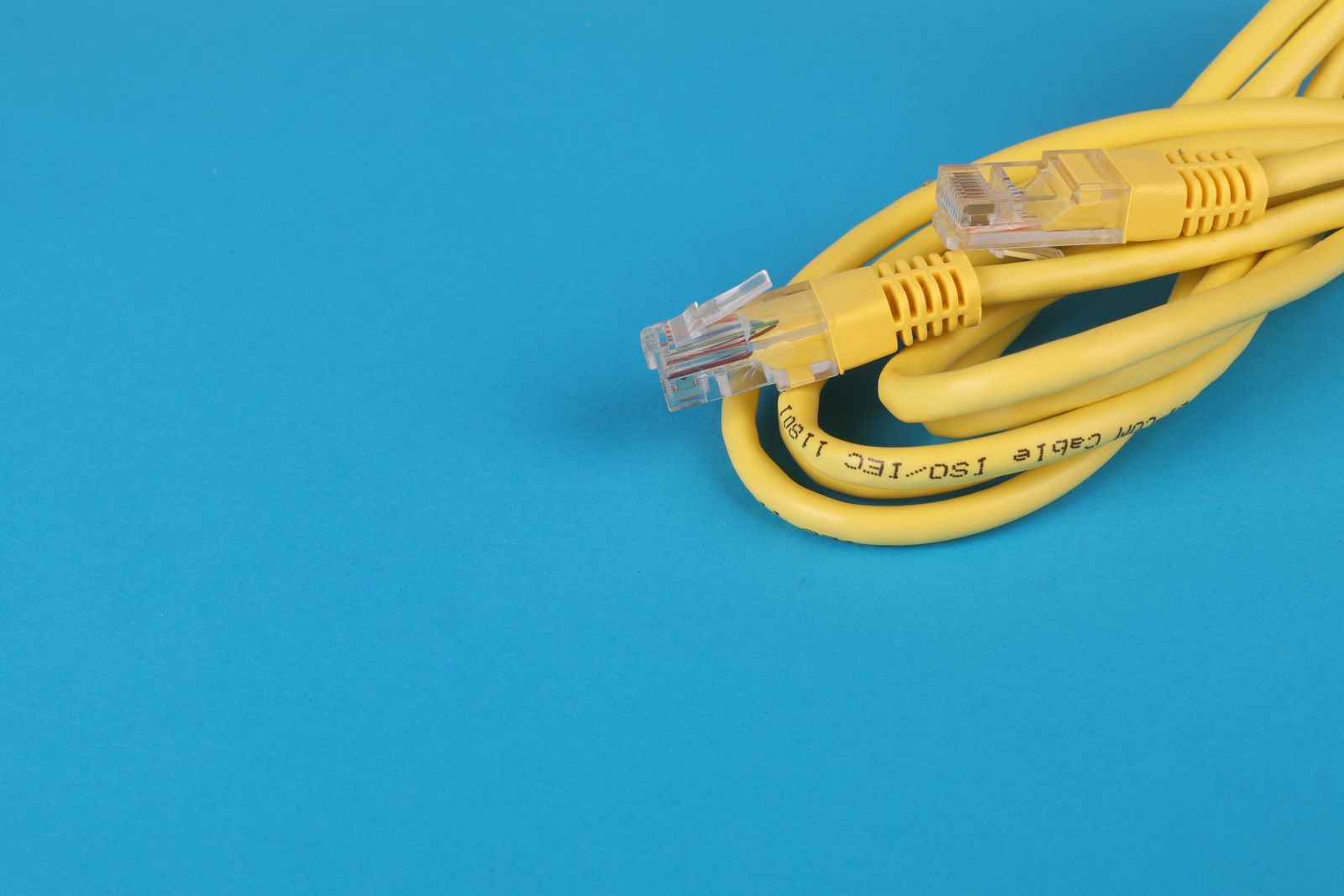 |
Bypass-Mode Dongle Kit |
|
Check Price on Amazon |
1. Gen 2 Ethernet Adapter
The Gen 2 adapter is specific to the actuated dish and its white router, and if that’s what you have, this is the one that fits. It taps the feed between the dish and the router and gives you a wired port out of it, which is the only way to get a physical connection on a Gen 2 setup. We’ve added these to older kits and it’s the difference between “WiFi only, forever” and actually being able to bypass the stock router.
The key thing to know is that it’s the prerequisite for bypass mode on Gen 2. You cannot run your own router without a wired path, and on Gen 2 this adapter is how you get it. The connector and the housing are made for the Gen 2 feed, so a Gen 3 adapter won’t work here and vice versa — check the generation before ordering, because the two are not interchangeable and neither one is clever about telling you.
One port is all you get, so plan on a switch next if you’re wiring several devices. Liked: enables bypass, adds a real Ethernet port, cheap. Catch: gen-specific, single port, no switch inside. Confirm your hardware before buying.
See Gen 2 Ethernet adapters on Amazon →
2. Gen 3 Ethernet Adapter
The Gen 3 adapter plugs into the Gen 3 router, which is the common current setup, and it’s about as simple as an accessory gets: it adds a wired Ethernet jack so you can connect a device, a switch, or your own router. We’ve used these to get a console off WiFi and onto a cable without touching anything else, and the wired latency improvement was immediately noticeable. It’s cheap, it’s effective, and it does exactly what it says.
Because the Gen 3 router has a different physical layout than the Gen 2, this adapter mates with the Gen 3 hardware specifically. If you’re on Gen 3 you’re lucky here — the process is easier than the Gen 2 route and the adapter is easy to find. If you’re not sure which generation you have, that’s the first thing to check, and the router’s shape and the dish’s connector will tell you quickly.
Like the Gen 2 version, this gives you one port, so a switch follows if you need more jacks. It’s the cheapest way to start down the wired path. Buy the right gen, plug it in, and you’ve opened the door to a proper network.
Compare Gen 3 Ethernet adapters on Amazon →
3. 2.5GbE USB Adapter
This one is for the device end, not the dish end, and it’s the upgrade you reach for when a single gigabit port feels tight. A USB 2.5 gigabit Ethernet adapter, usually USB-C and bus-powered, gives a laptop or a small computer a fast wired jack without a card or a dock. We use one to get a machine onto the wired network for large transfers and for testing real throughput, because bus-powered means no extra brick and it travels in a pocket.
It’s especially handy for wired backhaul between devices, or for feeding a mini PC that acts as a router or NAS. The 2.5 gigabit link is faster than the usual gigabit port, which matters when you’re moving data around inside your own network — not so much for the Starlink side, since the service is the ceiling there. Think of it as future headroom and less congestion on your LAN.
The honest catch is the matching problem: a 2.5 gigabit adapter only helps if both ends of the link can do 2.5 gigabit. Plug it into a gigabit switch and you get gigabit, same as a cheaper adapter. Buy it for a network that’s actually fast end to end, not as a magic speed upgrade. Liked: fast, bus-powered, portable. Catch: only pays off when both ends match.
See 2.5GbE USB adapters on Amazon →
4. USB-C to Ethernet Adapter
The plain USB-C to Ethernet adapter is the everyday tool: a small, cheap dongle that gives a laptop a wired jack wherever you are. We keep one in every bag, because nothing diagnoses a network faster than unplugging WiFi and plugging into a wire. On a Starlink setup it’s how you get a clean baseline — plug it into the dish’s wired path and you find out what the service actually delivers, with the WiFi out of the picture entirely.
On most operating systems it’s truly plug and play; the driver is built in and the machine just gets an Ethernet port. That makes it a great travel companion and a great troubleshooting tool at home in equal measure. For anyone who deals with “is it the WiFi or the internet?” questions, it’s the answer in a coin-sized package.
Watch the spec sheet, though — the cheap ones sometimes top out at 100 megabit instead of a full gigabit, which would quietly cap a fast Starlink link. It’s a one-line difference on the listing and it matters a lot. Buy a gigabit one and it’ll serve for years. Liked: tiny, cheap, plug and play. Catch: some models are only 100Mb — read the spec.
Compare USB-C Ethernet adapters on Amazon →
5. Bypass-Mode Dongle Kit
The bypass-mode dongle kit bundles the pieces you need to get onto your own router in one box: the correct generation adapter plus a short patch cable to reach your gear. It saves you from discovering halfway through that you’re one cable short, which is a small thing that ruins an otherwise calm install. We keep a kit like this on the shelf for exactly that reason — everything’s there, nothing’s missing, and the install goes the way it should.
The value is convenience and fit. Because the adapter is the gen-specific part and the patch cable is short and tidy, the kit gets you from “stock everything” to “my own router” with the least fuss. It’s not doing anything a separate adapter and a spare cable wouldn’t do, but buying it together removes the guesswork about which cable length and which adapter go with your kit.
The step everyone skips is labeling. Once you’ve got an adapter, a patch cable, and a router all in a row, label which run goes where — you will absolutely forget in six months, and it makes the next change trivial. Follow the bypass steps in order and this kit covers the hardware half of the job. Liked: complete, matched, no missing parts. Catch: you’re paying a little for the bundling — fine if it saves a second order.
See bypass adapter kits on Amazon →
Gen 2 vs Gen 3: which adapter do you have?
This is the mistake that costs a wasted order, so check it before you buy. The Gen 2 kit is the actuated dish with the original white router, and its adapter taps the feed with a specific connector. The Gen 3 (Standard) kit has a different router and a different adapter. They’re not interchangeable, and the listings often don’t make it obvious. Look at your router’s shape and the dish’s cable connector and match them to the adapter you’re buying.
If you’re genuinely unsure, the router is the easiest giveaway — the Gen 2 setup uses the older white router, while the Gen 3 uses the newer rectangular one with a different port layout. When in doubt, find the model on your account or the sticker on the hardware. Two minutes of checking beats a return and a week of waiting.
Adapter vs switch vs router
People mix these up, so here’s the plain version. The adapter gives Starlink a single Ethernet port. A switch turns that one port into several wired jacks for devices — unmanaged is fine for this. A router is what you add when you want bypass mode, your own firewall, and QoS; it becomes the brain of the network and the adapter just feeds it. You often use all three together: adapter to router, router to switch, switch to your wired devices.
Figure out which layer you’re missing before you buy. If you just want one console on a wire, the adapter alone does it. If you want five devices wired, adapter plus switch. If you want your own WiFi and control, adapter plus router, and possibly a switch after that.
Do you even need one?
Not everyone does. If your setup is small, WiFi covers it, and you’re happy with the stock router’s features, the adapter won’t change your life — it just adds a port you may not use. Skip it and put the money elsewhere.
You do need one if any of these are true: you want to run your own router, you’re chasing down a slow-speed complaint and need a wired baseline, you game or make real-time calls and want the lowest latency, or you have wired devices you want off WiFi. In those cases the adapter is the small part that enables the bigger fix, and it’s one of the best-value accessories in the whole ecosystem.
Comparison
| Option | Where it plugs in | Ports | Best for |
|---|---|---|---|
| Gen 2 Ethernet Adapter | Gen 2 actuated kit feed | One | Bypass mode on Gen 2 |
| Gen 3 Ethernet Adapter | Gen 3 router | One | Wired device or router on Gen 3 |
| 2.5GbE USB Adapter | Laptop / PC USB-C | One | Fast wired LAN, backhaul |
| USB-C to Ethernet Adapter | Laptop / PC USB-C | One | Travel, diagnostics |
| Bypass-Mode Dongle Kit | Per generation | One + cable | Complete bypass hardware in one box |
FAQ
Will the Gen 2 adapter work on a Gen 3 kit? No. The adapters are generation-specific and not interchangeable. Match the adapter to your router and dish, or it simply won’t fit.
Does the adapter add more than one Ethernet port? No, most add a single port. If you need several wired jacks, put an unmanaged switch after the adapter.
Do I need an adapter to use my own router? On the stock setups, yes — a wired path is required for bypass mode, and the adapter is how you get one. Without it you’re stuck on the stock router’s WiFi.
Will a 2.5GbE adapter make Starlink faster? Not on its own. It speeds up your local network when both ends support 2.5 gigabit, but your Starlink service speed is still the ceiling. Use it for LAN transfers and future headroom.
Our pick
If you’re on a Gen 3 kit and want the simplest wired upgrade, a Gen 3 Ethernet adapter is the easy win. On a Gen 2 setup, the Gen 2 Ethernet adapter is the only path to bypass, so it’s the one to get. Either way, confirm your generation first — that’s the whole ballgame with these parts.
Buy the adapter, then add a switch if you need more ports and a router if you want control. The adapter is small, but it’s the piece that opens up everything else in a Starlink network.